
Download Easy Video Converter – Fast, Free & Secure Media Converter
Overview
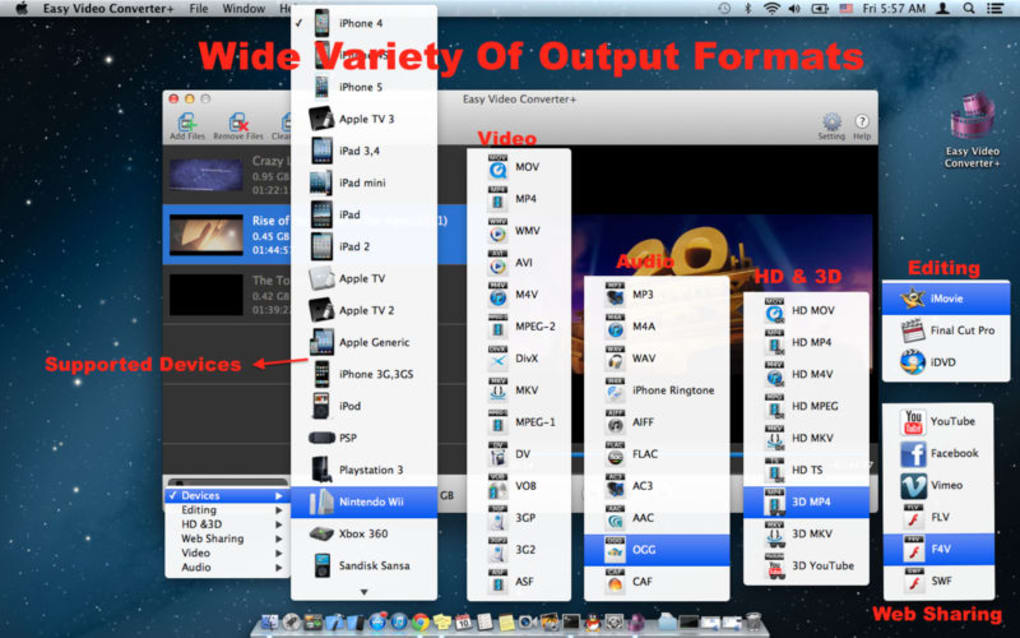
Easy Video Converter+ is a comprehensive audio and video conversion tool that lets you transform any media file into a format that works on your favorite devices. Whether you need to watch a movie on an Android tablet, listen to a podcast on an iPhone, or edit footage in Final Cut Pro, this software supports a wide range of output formats, including MP4, AVI, FLV, MKV, MP3, MKA, OGG, and AAC. The intuitive interface eliminates the guesswork usually associated with media conversion, while the built‑in batch processing engine speeds up large‑scale jobs.
The program also offers handy extras such as ringtone creation, audio extraction from video clips, and simple video trimming, making it a versatile companion for both casual users and professionals. Because it runs locally on your computer, conversions are fast, secure, and free from the privacy concerns that plague many online converters. Whether you’re a content creator needing to meet specific codec requirements, a traveler who wants movies in a portable format, or just someone who wants to free up space on a device by compressing large video files, Easy Video Converter+ delivers a reliable, one‑click solution.
Key Features & Compatibility
- Supports over 150 video and audio formats, including MP4, AVI, MKV, FLV, MOV, MP3, AAC, OGG, and more.
- Batch conversion engine allows unlimited files to be processed simultaneously.
- Built‑in video editor for trimming, cropping, and adding simple subtitles.
- Ringtone maker that extracts a 30‑second audio clip and saves it in iOS‑compatible formats.
- High‑speed hardware acceleration utilizes GPU for faster rendering on supported devices.
- Preserves original metadata, such as titles, album art, and subtitles, when converting.
- Simple drag‑and‑drop interface eliminates the need for technical knowledge.
- Automatic profile selection for popular devices (iPhone, Android, PlayStation, Xbox, etc.).
- Secure, offline processing ensures your media never leaves your computer.
- Regular free updates add new codecs and improve stability.
Operating System Support
Easy Video Converter+ is available for Windows 10/11 (64‑bit) and macOS 10.15 Catalina or later. The Windows version integrates with the context menu, letting you right‑click any file and select “Convert with Easy Video Converter+”. On macOS, the app appears in the Services menu for quick access. While a mobile version is not provided, the desktop app can produce files perfectly optimized for iOS and Android devices.
Pros & Cons
- Pros:
- Extensive format support eliminates the need for multiple converters.
- Batch processing saves time on large projects.
- Offline conversion protects privacy and works without internet.
- GPU acceleration makes high‑resolution conversions surprisingly fast.
- User‑friendly UI suitable for beginners and pros alike.
- Cons:
- No built‑in cloud storage integration.
- Advanced editing features (filters, transitions) are limited.
- Free version places a subtle watermark on the first conversion (removable with a cheap license).
Installation, Setup & How to Get the Most Out of Easy Video Converter+
Getting started with Easy Video Converter+ is straightforward. First, visit the official website and click the “Download for Windows” or “Download for macOS” button. The installer is a small .exe (Windows) or .dmg (macOS) file, typically under 30 MB, making it quick to download even on slower connections. Run the installer and follow the on‑screen prompts – the default settings work for most users, but you can customize the install location and decide whether to create a desktop shortcut.
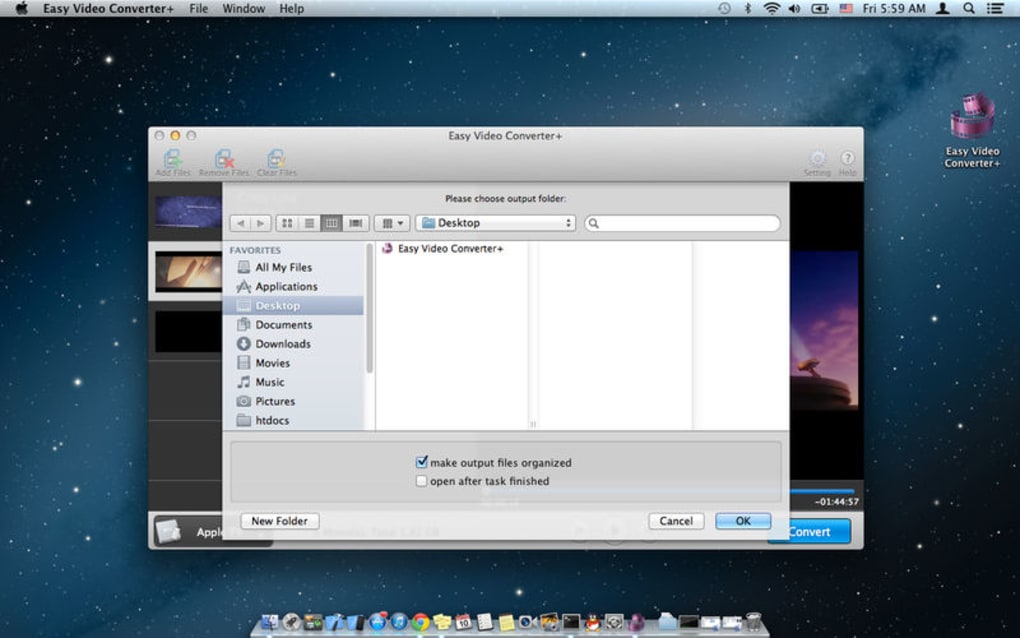
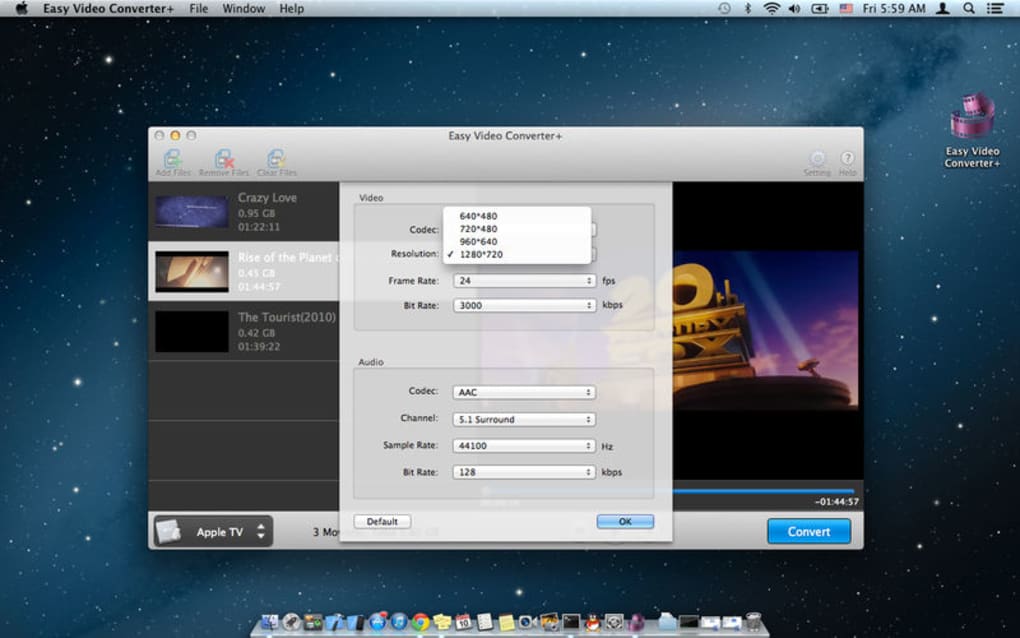
After installation, launch the application. The main window displays three panes: the source file list on the left, format presets in the center, and conversion settings on the right. To convert a file, simply drag it into the source pane or use the “Add Files” button. Choose a preset (e.g., “iPhone 1080p MP4”) or click the gear icon to fine‑tune resolution, bitrate, and audio codec. For batch jobs, you can select multiple files and assign a single preset to all of them, saving hours of repetitive work.
For users who need ringtones, select a music file, click the “Ringtone” tab, and set the start‑time and duration. The app automatically formats the output to .m4r for iPhone or .mp3 for Android. To extract audio from a video, choose the “Audio Only” option and pick your desired format (MP3, AAC, OGG). The built‑in preview button lets you check the result before committing to the conversion.
Tips for optimal performance: enable “Hardware Acceleration” in the Settings menu if your GPU supports it; use the “Fast Start” option for MP4 files to improve streaming on web platforms; and keep the software updated – the program checks for new codecs and bug fixes each time it launches. If you encounter any errors, the “Log” tab provides detailed information to help you troubleshoot or contact support.
FAQ & Final Thoughts
Can I convert 4K videos with Easy Video Converter+?
Yes. The software supports 4K (3840×2160) resolution for both input and output, provided your hardware meets the required CPU/GPU specifications.
Is there a limit on the number of files I can convert at once?
The free version allows unlimited batch conversion, though extremely large batches may take longer depending on your system resources.
Do I need an internet connection to use Easy Video Converter+?
No. All conversions happen locally on your computer, making the tool ideal for privacy‑focused users and for situations where internet access is limited.
Can I edit subtitles or add captions during conversion?
Basic subtitle embedding is supported. You can import an SRT file and the program will hard‑code it into the video during conversion.
What is the difference between the free and paid versions?
The free version includes all core conversion features but adds a small watermark on the first output file and limits priority support. The paid license removes the watermark, provides priority email support, and unlocks advanced editing filters.
Conclusion – Should You Download Easy Video Converter+?
If you regularly juggle media files across multiple platforms, Easy Video Converter+ offers a fast, secure, and user‑friendly solution. Its extensive format library, batch processing capabilities, and offline operation make it stand out among free converters. While the free version’s watermark may be a minor inconvenience, the cost to upgrade is modest compared with the time saved on manual conversions. Whether you’re a video hobbyist, a podcaster, or a professional editor needing quick format swaps, this tool streamlines the workflow without sacrificing quality. Download Easy Video Converter+ today and experience hassle‑free media conversion on Windows or macOS.







